
Set up IPTV on Android TV
Install a supported player through Google Play on the television and confirm the listing belongs to the intended publisher.
Find your model and operating system. Check the store, app and test steps for your screen.
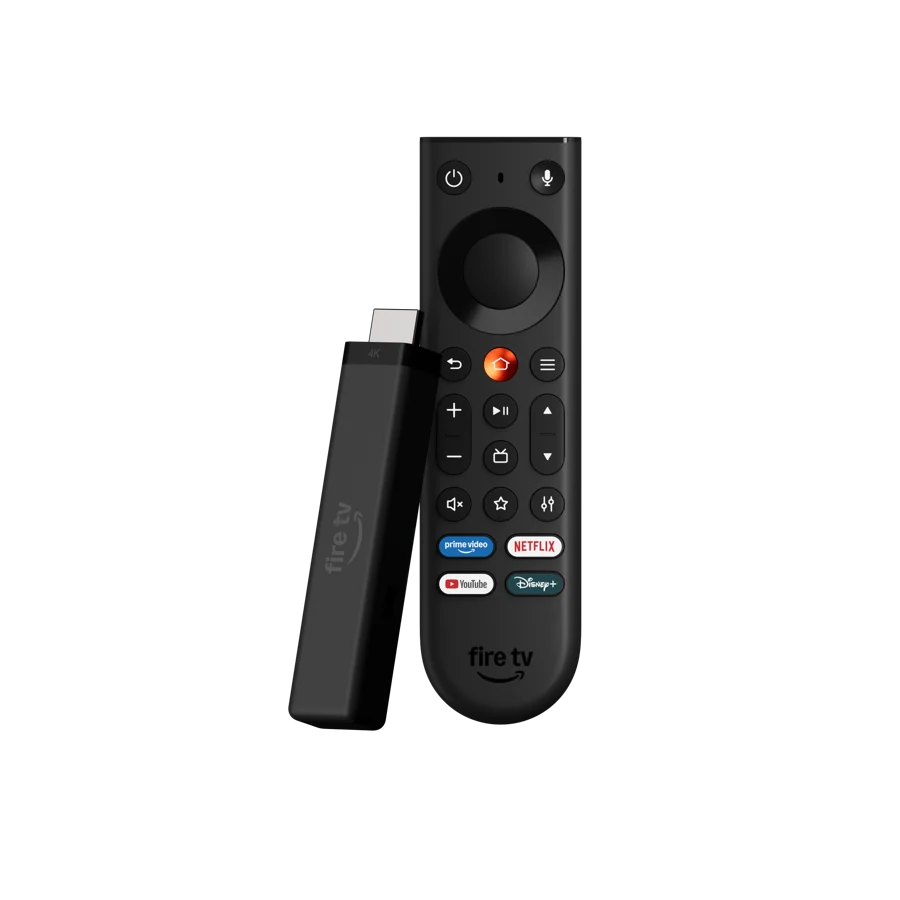 In-depth guide · 24 min readSet up IPTV on a Fire TV Stick 4KIdentify your Stick generation before installing a player. Then use one authorised feed to check the remote, guide, picture and sound from the sofa.Read the guide
 In-depth guide · 24 min readSet up an IPTV player on Google TV and fix playbackWork from the Google TV device that will play the video. Check its app listing, add one supported source and isolate app, network and account problems with repeatable tests.Read the guide
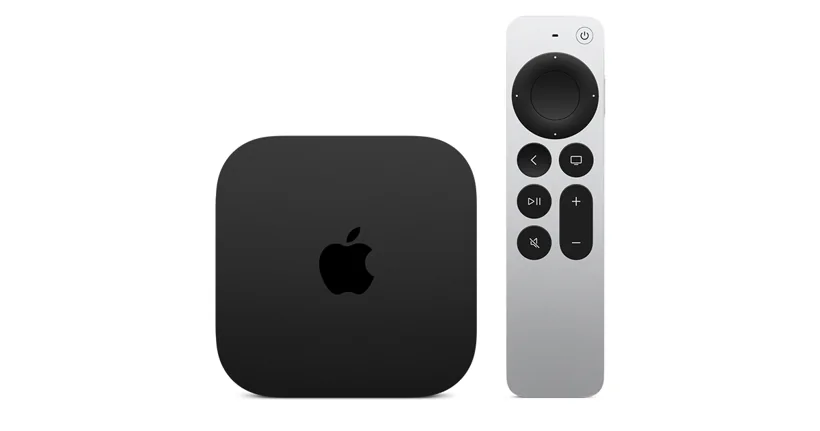 In-depth guide · 24 min readSet up IPTV on Apple TV 4K and check the picturePick an app from the tvOS App Store, connect the viewing access it supports, and test live video, captions and HDMI through the equipment you actually use.Read the guide
Install a supported player through Google Play on the television and confirm the listing belongs to the intended publisher.

Find the model and country setting, then look for the publisher’s TV listing in Samsung Apps on that device.
Use LG Content Store or Apps as documented for your model. Check the store on the TV for the exact app and regional listing.

Identify the operating system in the TV’s settings first. Use the app directory available to that model and region.
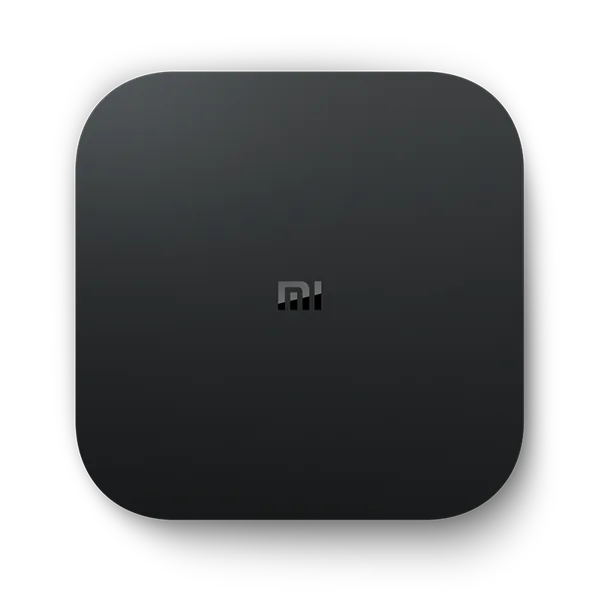
Identify the model generation in settings. Use the store provided on that box and check the official app listing on the device.
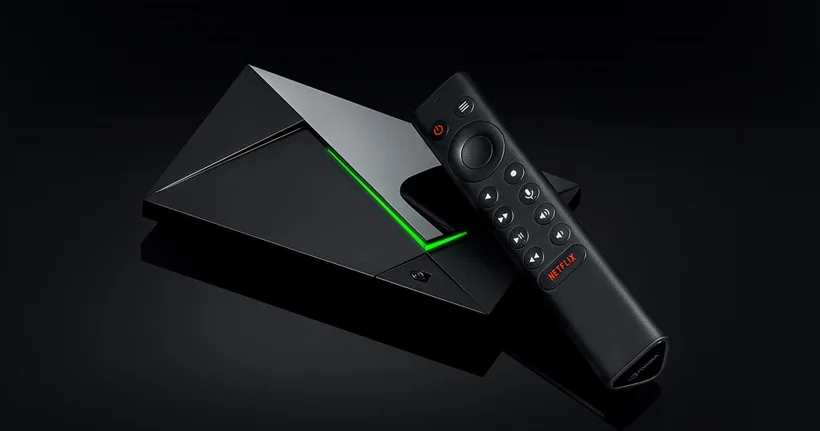
Look for a compatible TV app in Google Play on SHIELD, then test the actual content and output formats used by your household.
Look in the Roku Streaming Store for an app published by the relevant broadcaster or service for your region.
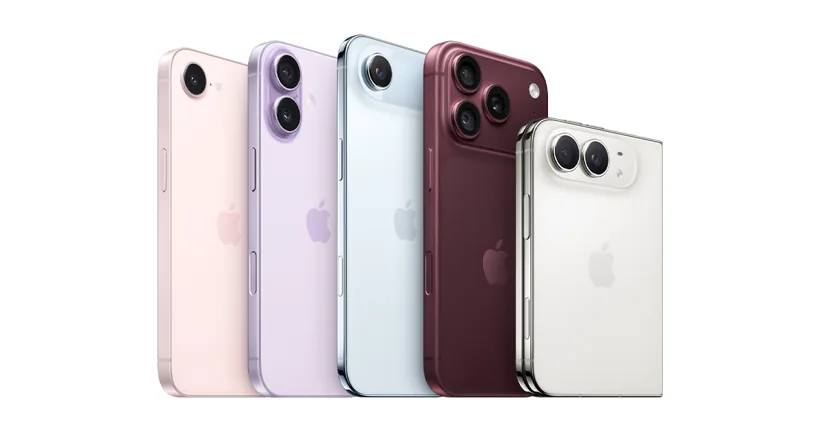
Install from the Apple App Store and confirm the publisher and required iOS or iPadOS release. Test playback and any casting path separately.
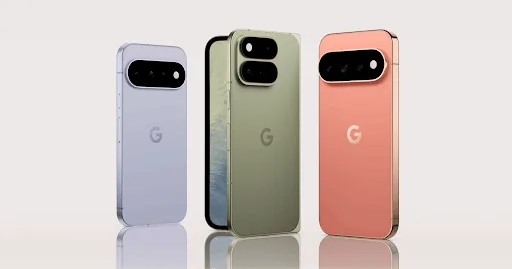
Start with the publisher’s Google Play route. Choose the mobile app for the exact publisher and use a supported source type.
Use your broadcaster’s supported browser or a documented desktop player such as VLC for an approved direct stream.
Start with an authorised website in its supported browser or install the publisher’s supported macOS player.
Use the source’s documented browser path or install a supported player through your distribution or the official publisher.
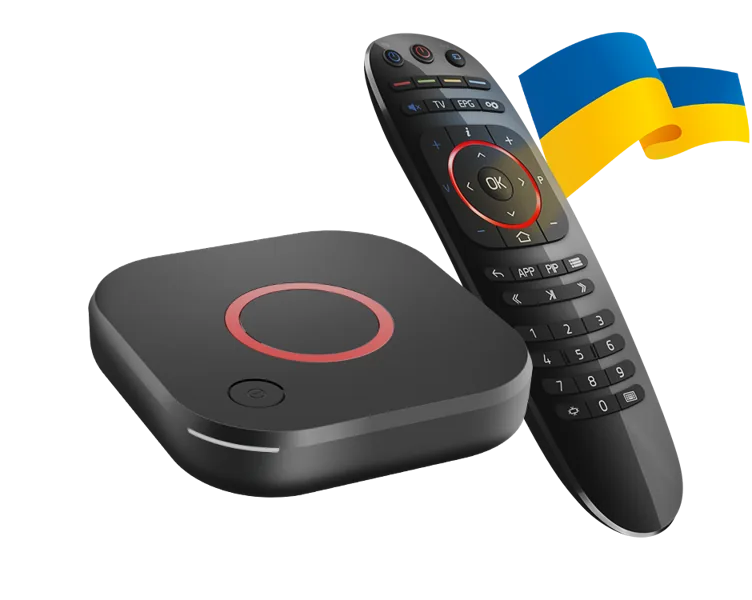
Confirm the exact MAG model and Infomir platform. Follow the service’s documented portal or playlist enrolment and keep identifiers private.
Read the exact Formuler model and MYTVOnline edition. Use that edition’s official connection instructions and the provider’s supported account route.
The model matters. Amazon lists the 2023 second generation under Fire OS and a 2026 third generation under Vega OS. Match your device to its official model entry.
Read the related guideUse an official tvOS App Store listing for a supported Apple TV model. An Android package is built for a different platform.
Read the related guideThe TV catalogue depends on the app’s television support, device and store region. Check the publisher’s TV listing on the target screen.
Read the related guideUse the Apps experience on your Google TV device and choose the result from the correct publisher.
Read the related guideOpen Samsung’s Apps experience on the TV and follow the instructions for its model. An external Android box uses its own store.
Read the related guide