
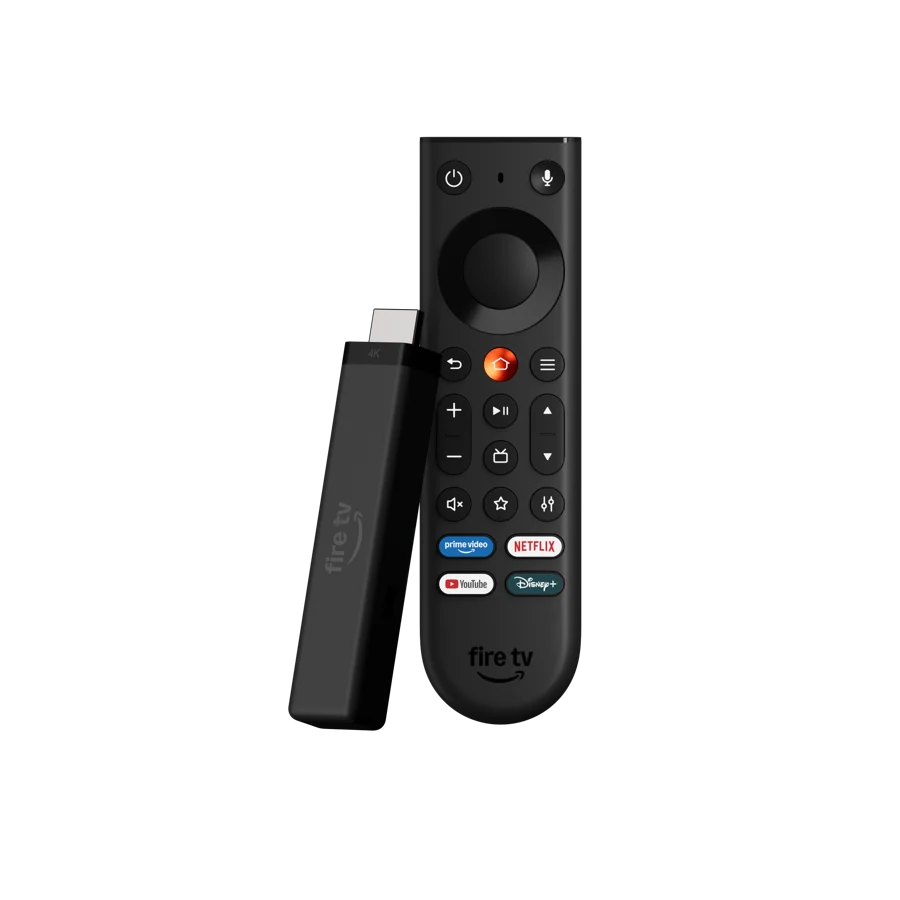
Read the model name before choosing an install guide
Start with the Stick that's plugged into the TV. Open its system information and copy the full product name, software version and model identifier if the device shows one. Follow Amazon's device identifier instructions when the About screen abbreviates the name. A photograph of the remote, an advertisement that says “4K,” and the name of the input on your television are poor ways to identify the player. Each describes a different part of the setup.
Amazon's published model tables separate the 2023 second-generation Fire TV Stick 4K, a Fire OS device, from the third-generation 4K Stick listed in 2026 with Vega OS. Its Fire TV Stick 4K Select is also a Vega OS model in those tables. In a room with multiple Sticks, record which one is on which input first. If your drawer contains an older 4K Stick and a newer Select, moving the older remote near the television won't move the app or account to the new Stick.
| Label you can match to Amazon's table | Operating system in the documented model entry | What to check before choosing an app |
|---|---|---|
| Fire TV Stick 4K, second generation, 2023 entry | Fire OS | Check the native Appstore listing, publisher and exact supported device entry. |
| Fire TV Stick 4K Select | Vega OS | Find a marketplace listing for Select or a documented app path for this specific unit. |
| Fire TV Stick 4K, third generation, 2026 entry | Vega OS | Check current compatible listings using this device. Review any seller's instructions for the correct product generation. |
A support answer that begins “Go to the Apps page on a Fire Stick” can still be useful for navigating the device. Treat the rest of the answer as model-specific once it starts describing package format, menu access or player versions. If a screenshot shows a menu that isn't present on your unit, stop at that mismatch. Check the guide's date and manufacturer table before you spend another hour following the wrong menu path.
Write the model and operating system on the first line of the note you keep for support. Add only data a helper can use. A model identifier shared by a product family is useful. A serial number, activation code or Wi-Fi password belongs in your private records. Someone reading a forum question about player compatibility usually needs to know which generation and region you have, which app you tried, and what the marketplace said about it.
One helpful way to compare advice is to ask, “Was this app installed from the device I have today?” An app publisher's page can list several families. A seller's getting-started sheet might have been written when only one generation was in circulation. The two documents can agree about what the app does and describe different installation paths. Date and model are what let you reconcile them.
Make a shortlist from listings your Stick can open
Use the target Stick for the search. Find the app in the Amazon Appstore interface and check the listing's publisher, the input methods it describes and whether the device can install it in your marketplace. Write down the displayed store name. Software with a very similar icon and a slightly different publisher can have a different payment, update and support route.
Choose the next step based on the overlap between the service's documented inputs and the player's actual features. A service might provide an authorised playlist link and a separate guide source. Another might grant access through its own native app. A third might describe account fields. Ask the publisher which choices the current Fire TV build exposes. A polished screenshot from another operating system can't answer that question for the remote in your hand.
If the listing shows the app on a phone or browser but the Stick won't install it, pause before paying. Check the publisher's eligibility guidance for the exact model, software and region. Store search can surface similar products, older support pages and a listing compatible with a different device registered to the account. Return to the same listing on the TV so you see the availability that applies there.
A Fire OS instruction may refer to an Android package for a supported Fire OS family. Read the publisher's installation policy and verify the source if you have a supported route. Vega OS has its own published app path. A copied download code, a shortened anonymous URL or a vendor video from an earlier model doesn't establish a supported route for a current Vega Stick. When the provider can't identify a suitable listing, use a device and app combination it can document. The approved download routes guide explains what to confirm before using an Android package on any eligible device.
Set aside a short window to try candidates one at a time. A basic shortlist can fit on a slip of paper next to the remote. Name the publisher, input format, price shown and whether the remote can move through the list and guide. Keep player licence and channel access separate in that note. This matters when one app requires a purchase to unlock the features you intend to test. The seller of the channels may have no role in the app receipt.
Check the app's support route before adopting it on a family TV. Someone else may need to find the guide, renew an eligible unlock or recover a lost favourite. A publisher that supplies a model-specific listing and clear restore instructions saves more time than a storefront splash screen full of badges. If the app lists a recognised TV platform and your device won't install it, ask one clear question with the exact model and listing. Keep the answer along with the software version.
Establish the television and power baseline first
Look at the full physical path before interpreting a black picture. Trace the Stick to the TV, or to the soundbar or receiver that takes the HDMI signal. Confirm the TV is showing that input. Use the power arrangement documented for your exact device, including the supplied adapter or any documented alternative. A setup that manages to display a menu and then reboots as it starts playback needs a power and connection check before you change accounts or reinstall software.
Keep the first baseline simple. Use a known working HDMI input with the Stick connected directly to the TV if that is practical. Test that you can see the home menu, move focus with the remote and hear a known supported title through the TV speakers. Write down that working combination. Reintroduce an intermediary receiver or soundbar after you can reproduce the basic result. If turning on one intermediary causes the failure, you have a much smaller system to investigate.
Some televisions label their inputs by a device name or an icon they discover. You can make the label useful by recording which physical port actually corresponds to it. If you move a Stick while testing, update that note before you restart. Otherwise you may spend your next trial on the wrong input and attribute the absence of a picture to an app. For wall-mounted devices, check which safe connectors and adapters fit without strain and refer to the manufacturer's support instructions.
An HDMI handshake change is often an event around starting a programme, leaving it, changing inputs or switching playback mode. Record when the screen went blank and whether it recovered. A video freeze inside the player with the UI still responsive belongs in a different part of the notes from a TV saying “no signal.” Test a known app, then compare the issue with the player you intend to use. The moment of the failure matters more than the fact that you saw a black screen.
Do the same for controls. Check the Fire TV remote can bring up the device menu when the stream stalls. Check volume on the actual audio route you plan to use. Some setups use one remote to control multiple pieces of equipment. A separate control command to the TV or receiver can select a new input without any setting inside the IPTV player changing. Write what you pressed rather than just “the remote stopped working.”
If you intend to move the Stick to a different TV later, save a picture and audio baseline for the new screen as well. Different ports on the same television can have different supported input modes. The TV, HDMI path and sound route together determine what you see and hear. The board inside the Stick is only one link. A simple line such as “direct to living-room HDMI 2, TV speakers, home menu and known HD test passed” gives a helper a much clearer start than a brand list.
Add the access method that your service actually grants
Read the service's setup page and identify the exact method it supports for the chosen player and device. If it supplies a playlist, confirm whether you are importing a file, a hosted link or a link to a publisher's own application. If it supplies separate account fields, use their written field descriptions. Keep the protocol, host and port as issued. A service using its own native sign-in can use a different username or account recovery flow from a general player.
Retype one confirmation field slowly with the remote. Accidental spaces are easy to insert on a TV keyboard. Credentials can mix zero with the letter O or upper- and lower-case characters. The simplest diagnostic for an entry problem may be to compare what you entered with your private source, then test once with the exact current fields. If the provider reports the account active and the error persists, record the unredacted details privately for its authorised support route.
An app can read a list without proving each channel can play. A visible group or a channel icon tells you that some metadata loaded. For the first video test, pick one channel you are entitled to use and whose expected behavior you can confirm through the service's own help. Check your account's connection allowance before starting another stream on a phone or TV. An existing stream elsewhere can distort a comparison if the subscription permits only one active connection.
Keep the guide data separate in your notes. If a service supplies a separate approved XMLTV source, add it after one video plays. Where the player derives programme information from its own service, use the app's documented refresh. A schedule entry that looks correct at first glance can refer to a different time zone, edition or regional feed. Read the displayed programme date and start time for a station you recognise, then compare the official schedule. The programme-guide repair walkthrough has an ID matching exercise you can run with fictional data.
If you manage several playlists, name the test entry in a way that identifies the publisher and viewing purpose without exposing the account. Give test results a time and time zone. A gap in the subscription or an expiry at midnight in another zone can explain a failure triggered at a predictable time. That doesn't require the viewer to change the television clock to hide the issue. It requires the party responsible for the subscription to confirm the recorded date and account term.
Use only information safe to see on a living-room screen when you demonstrate a fault to someone else. Mark the app's input type and whether credentials were accepted. Omit entire playlist URLs, QR codes and account menus from photos you post. A signed link can act as a password even when it looks like an ordinary address. You can preserve the original safely and share a small, redacted error or a fictional example instead.
Run one viewing test you can repeat tomorrow
Pick a feed and a programme change you can recognise. Test it during the time you normally use the TV. Sit in the normal viewing position and use the same network and audio route you expect to keep. Record how long it takes for live video to appear, how channel changes feel, whether the guide shows plausible schedules, and whether captions and the desired audio tracks are selectable. You do not need a lab stopwatch to notice repeated interruptions. The aim is a stable comparison that someone else can follow.
A useful baseline includes a simpler control. Use an authorised source known to play normally through a supported app on this Stick. Compare the new feed with that control, changing as little as possible. If both apps lose connectivity within the same time window, look at the local connection and power. If the control is stable and the affected feed stalls at the same point in replay, note the programme and position and check whether the service can reproduce it.
Measure separately from browsing. A cover grid may remain smooth while the player stalls on a stream. A guide can refresh while video fails. Being clear about those boundaries will save you from reinstalling a marketplace app for a subscription issue. If playback starts but changes quality repeatedly, record what the app's diagnostics show if it has a supported display. Do not treat the indicated video output from the Stick as proof of the incoming source resolution.
Give a short test a beginning and an end. Suppose you watch one recognised local station for twelve minutes and try three channel changes. One run succeeds on Wi-Fi. A later run fails after four minutes with the same source and app. Keep both rows, with timestamps and the exact changes. A “worked once” label for the entire setup won't show when conditions differ. You can compare the two rows without needing to change the player or acquire another long subscription.
Follow up with the viewing features that matter to your household. Try speech captions during a suitable programme, the remote's back action from a full-screen player, and an alternate language or audio-described track when the source offers it. The TV app may expose fewer controls than the companion mobile app. Check from the position and screen your viewers will actually use. Decide which feature failures genuinely affect the choice before you chase every small visual difference.
A supplier may advertise a short trial. Verify its actual expiry, eligibility and what happens afterward before relying on it. A trial should give you time to repeat the checks that matter. If your household watches a live event in the evening, a brief morning run is only an initial check. Keep the result as a dated note and request a documented route for the actual use case if you need one. The subscription trial checklist expands the purchase side.
Trace stalls through the room before changing the player
A Stick often sits behind the panel and near cables or brackets. Compare its network behaviour with how the TV is installed in the room. A phone near the router may show a strong connection while the Stick behind the panel negotiates a weaker one. Where the model and installation support it, try a documented Ethernet arrangement or a different permitted placement. Check a normal control programme again using the same player, resolution and time window if practical.
Name each change. “The Stick was on the second input, with the Wi-Fi router unchanged. I connected it with the documented Ethernet arrangement. The same feed was stable for ten minutes afterward.” That language tells the reader what comparison you ran. It also leaves room for the possibility that the service briefly recovered. Repeat the test if you need a dependable outcome for an installation you plan to keep.
Check activity elsewhere at the same time. Large downloads or backups can affect a local link. A connection that works well when the home is empty may behave differently while people use it. Try to preserve ordinary household conditions for the baseline. A controlled quiet window is useful as a second observation. Record both so the result applies to your viewing situation instead of turning your whole home off every evening.
You may see three patterns. Stalls in several unrelated apps may point toward the home link, device or a broader outage. Stalls in a single feed while similar authorised feeds run normally suggest that the particular item needs investigation. Consistent stutter without a loading spinner, especially on pans, may relate to display timing or decoding. These are hypotheses to test. The timing, screen behavior and any app diagnostics determine which is worth checking first.
If the Stick's network menu indicates a connection problem, use the device's own tools first. Reconnect to the correct home network if someone joined a guest network by mistake. Confirm the router and source service are reachable through their supported checks. If you share a mesh system, note the nearest node, ordinary congestion and whether the problem moved with the device after a documented placement change. A remote helper can work with a nominated room and exact symptom.
Avoid resetting several layers for the sake of doing something quickly. Clearing app data may remove configuration and favourites. A thermostat-like loop of toggling unrelated choices leaves no baseline for an authority to compare. A restart can be a useful reversible check. Save the player's account reference and recorded preferences privately first, then retrace the same steps with a fresh session. The buffering field guide gives a longer checklist when multiple apps and feeds are affected.
Decide whether the picture issue belongs to the input or the stream
Start with what is visible. Check whether the TV can display the home interface and a known supported programme. If every screen disappears, the app's playlist is unlikely to be the place to start. Confirm the physical input and follow the TV's documented signal checks. If only the player's window goes black and controls or subtitles remain, record the exact title, its signal properties when documented and which player screen still responds.
An app can receive a compressed source at one resolution while the device sends a different output resolution to the TV. The TV can upscale, and a source can adapt while a device keeps the same HDMI mode. A “2160p” label on the screen's input banner reports a signal property at that endpoint. It can't tell you whether a particular stream is carrying the bitrate, compression, colour or original detail you expect. Use the player's documented per-stream details where available and keep vendor claims tied to the exact test.
For a colour or flicker question, use one recognised source and the same viewing setup. Record the display mode before adjusting it. If two different titles trigger a brief mode-change screen immediately as playback starts, note whether the picture stabilises afterward. If opening just one low-quality source causes repeated blanking in the middle, that is a different observation. Check hardware and app support for the actual output combinations before drawing a conclusion.
Check modifiers that matter only on some sets. A picture mode on a TV can add processing to all inputs, while an app might have its own option that affects a single source. Switching everything at once prevents you from seeing which control mattered. Use the TV manufacturer's documentation for input support and picture settings. If the TV displays options under an input-specific menu, record that you were on the correct HDMI input when you checked them.
A camera pointed at the TV can often change the colour and contrast of what a viewer sees. If you need to explain a symptom, describe it first. A thirty-second report can state that motion shows regular judder on a wide pan, whether audio continues, which output mode the TV reports and whether the same footage behaves in another authorised app. That information may be more useful than a blurry phone video, and it can avoid accidental capture of account overlays.
After a display adjustment, retest the home menu and a known compatible programme. Use the simplest supported path that shows the issue reproducibly. When you reconnect a receiver, make the receiver's model and input explicit in your note. HDMI examples in a general forum thread are only starting points. Your observed result and the exact e-manual for the TV and receiver are what establish the supported final setup.
Check captions, audio tracks and the actual audio route
A picture can be correct while the chosen output won't play a particular audio format. Start with the TV speakers in a supported configuration. Try another programme with a known speech track. If that programme works, test the affected item once and note whether the player lists a selectable track, language or audio description. A single missing track could belong to one item or edition. The position of a receiver in the HDMI chain is a separate variable.
When dialogue leads or trails the picture, time the effect by watching a recognisable action, such as a person speaking on screen. Note whether the difference is constant or builds up over several minutes. Try the same programme on a simpler output route if you can do so safely and consistently. A meaningful note says “the same replay stays in sync on TV speakers but is delayed through the receiver,” with the model and test time. It establishes when the issue appears without implying that every source uses the same audio encoding.
Test the remote path for captions from the viewing screen and after a channel change. Some players have session defaults, while the source may offer a finite set of subtitle tracks. A support note should state the specific programme, selected language and where the control appeared. A subtitle setting on the Fire TV interface can be separate from the player setting and the actual track carried by a particular feed. Keep all three distinct in your report.
Ask someone who uses captions or audio description to try the interface during a normal session. Can they find the control with the remote without reaching for a phone? Does returning to the guide preserve focus? Can they identify which source is giving alternative narration? If the app keeps a useful default in one view and drops it on a channel change, include that detail when deciding whether the player is suitable for your household.
Set aside comparisons where the programme source differs. Watching a different broadcaster's version of a match with a different sound mix doesn't isolate a player setting. Select the same licensed replay through supported paths, where possible, and compare realistic equivalents when an exact pair isn't available. Label the difference in the notes. That prevents a later reader from treating one comparison as a conclusive test of a surround setup.
If the audio route involves an HDMI intermediary, keep the documented defaults alongside what you changed. Some devices offer multiple compatible formats and output settings. Use the device makers' instructions to test a supported format and revert if it reduces accessibility or voice clarity. There is little gain in advertising a complex setup if the people who use it cannot reliably get sound, subtitles or the guide every evening.
Preserve a working installation before you migrate
Keep a simple inventory of what really belongs to the old Stick. A paid player unlock can be tied to a marketplace account or to an app-specific registration. Favourites and recorded devices might be local or synchronised by the publisher. Service access may be limited by the account's active connections. Get the relevant written rule for each part before expecting a newer operating system to inherit everything.
When you have a usable setup, record the exact listed publisher, install route and app version. Document the approved input type and recovery steps privately. You can keep personal credentials with the owner's preferred credential manager and keep the paper guide next to the television neutral. A replacement plan that says “install the correct app, follow the vendor's restore instructions and connect the account” is useful only after you know that the listing exists for the replacement device.
Try a side-by-side migration when the service rules permit it. Keep the known setup intact while you check that the new Stick can install the correct app. Use one authorised source to verify playback. Then check the remote, the guide and the accessibility features used by your viewers. Stop the old active stream if you need to free its authorised connection. This is a safer comparison than removing the application on the original device before finding out what the new store carries.
If the new model uses a different operating system, compare what the publisher says about transferring a purchase. A player name can survive across marketplaces while restore rights and configuration storage differ. Keep the original receipt, read the current licence terms and request help from the party named on the purchase. A reseller's ability to supply channel access doesn't give it authority to change the app's marketplace licence.
The final handover should be short. Note the HDMI input, the name and icon of the native app, a reliable way to return to live TV, and who to contact for app or billing problems. Document which selections cannot be recovered after deleting app data. Add the date the setup worked. A roadmap made for a living-room viewer needs ordinary language and a few dependable checks. Exact model numbers and extensive diagnostic notes can sit one level below for whoever looks after the equipment.
When you retire the older device, remove the account and personal records using the device and service's documented processes. Check the provider's entitlement before using a replacement indefinitely. Record the transition and preserve your working notes where another household member can find them. If a provider asks you to abandon the old support path, verify its current notice and keep the receipt record before changing the whole setup.
Send one clear reproduction when you need help
A useful Fire TV help request starts with the model and operating system you actually checked. Add the app publisher and version, the supported input type you used, and the first failure you can reproduce. Include a compact control test and the time zone. People reading a forum cannot decode “every channel is bad on my new device” without enough context to locate the failing step.
Describe the last successful event. For an install issue, quote the public availability message from the Appstore and the publisher's listing. For an audio issue, state whether TV speakers worked. For a valid login with a blank guide, say that video plays and note the playlist and guide formats without including any URLs. That combination steers the conversation toward the right check.
A simple example can read, “Fire TV Stick 4K Select, Vega model identified in About. The publisher has a current listing. One supported trial feed starts and audio continues, but the picture goes black after the TV changes modes. A known source plays normally on this direct HDMI connection. Tested Tuesday at 19:40 local time.” This example describes the fault without sharing any credential or pretending one person's report proves every setup has the same cause.
Prefer one question that a helper can actually answer. “Which documented TV signal check should I run next?” is actionable. “Which marketplace supports this exact Stick model and player?” invites someone to identify a known source. Responses that assume an older Fire OS install path may be well-meaning and still apply to a different model. Ask for the exact supported listing or official device help when a response starts with a different operating system.
Use the forum help request guide for a fuller template. The devices category suits model, remote and install questions. The playback category suits trouble that persists once app and access work. If you know the issue is account-specific, share exact order details only through the merchant's authenticated route. Preserve the public explanation at the level other viewers can use.
A successful follow-up should say what test you ran and how it changed the outcome. Mention whether the change fixed the original feed at the usual time, whether the control still worked, and which part remains unexplained. A later reader can then decide whether your model, app and viewing path are close enough to borrow the step.
Keep a change log after a software update
Updates arrive when you are busy watching, not when you have a fresh worksheet in front of you. Before changing anything, open the app's information screen and the Stick's About screen and record the versions that are visible. Note whether a new error appears during launch, at sign-in or after a channel starts. If the store offers an update to the actual installed player, read what it applies to and try the documented update procedure. An update for a similarly named app won't answer the question.
A before-and-after note should include a stable control that is independent of the setting you changed. Suppose an update changes how the back button behaves while watching several streams. Go back from one known item to the guide, turn the television off and on normally, then repeat. Check whether the behaviour occurs in both the ordinary row view and the full programme grid. A precise demonstration can help a publisher locate focus handling in that build. Telling someone “the update killed the guide” omits the part they can check.
Look for a change you can reproduce when nothing else has changed. If a broadcaster reported a problem in the same window as the update, record that separately. A household test on one exact setup helps you choose a quick next check. It needs a control to become useful evidence about what changed. If you can reproduce both a working path and a failing path without reinstalling, keep both results and the model details.
Keep a record of the point at which you stopped using the app. It may be that the old version still works on a second approved TV, while the new version on the Stick requires the publisher's attention. Compare the app and account sections privately with the receipt. If you took out a term because one accessibility feature was available, describe that feature and the effect on actual viewing when seeking support. Keep your evidence tied to what the seller or publisher promised for that model.
If your next step is to switch apps, preserve any supported favourites export and record the approved inputs in your private notes. An uninstall can be appropriate after you know the replacement supports the function you depend on. Make the switch only after running the same viewing test. That gives you a clean before-and-after comparison and leaves someone else in the household with a clear way back to the service.
Sources and scope
Publisher documentation and editorial analysis. Hardware and subscriptions were not purchased or tested for these guides.