
Start by naming what actually happens
Look at the screen and listen to it before touching a setting. A spinner while sound stops is a different observation from uneven motion with continuous speech. Write down the first thing you see. “Picture and audio froze at 20:16 while the spinner appeared for three seconds” is useful to somebody who will never be in your living room. “IPTV buffering all the time” is too broad to reproduce. If you saw an error, keep the words and any normal interface code in your notes. Crop out account details before sharing a screenshot.
Watch whether the player eventually resumes and where it lands. For live video, it may resume at a different point from a DVR or replay. A brief black interval when the device or TV changes video format can occur in a supported display mode. A recurring stall minutes into a steady programme calls for a different investigation. A picture with continuous audio and a visible TV menu should make you check whether only the rendered video has a problem.
Note the timing on startup. Some apps take several seconds to open a lawful feed before the first stable frame. If that happens at the start and playback remains steady afterward, you have a slow startup symptom. If the screen opens promptly then stops at irregular intervals, record stalls separately. If every transition to a different channel takes time while playback remains stable, distinguish channel change delay from a failure partway through one feed.
Describe the scope. Note whether it occurs on one event, every channel in one player, several legitimate services on the same device, or devices in the same room. Write whether it happens at a predictable hour or after another screen opens. Someone else can use these details to choose the first test without guessing what you meant by “sometimes.” If you cannot repeat it immediately, keep the time of the previous example and plan a second controlled window.
For the first pass, leave settings where they are and test two lawful feeds on the same device. If the problem remains unclear, change one part of the path and repeat. That is the core of this guide. It works with app menus and a notebook, and you can add detailed diagnostics when the publisher exposes them. The sample logs below are worked examples with fictional times and totals.
Build a control that will tell you something
Choose a source you can use legitimately and whose normal behaviour you know. A publisher’s own app or a lawful preview with a known picture provides a useful second route. Try to choose a control close to the affected programme in quality and type. A downloaded file can help test video decoding and display. It cannot tell you how a busy internet route handled repeated requests for live video. A low-resolution clip can show that an app opens, and an HD stream with comparable motion and duration gives a better playback comparison.
Write down the device, OS, player version, connection type, title and scheduled viewing time when those things matter. Keep the original versions and format settings for both tests. If the app runs through a TV box, say which HDMI device shows the symptom. If the television’s built-in app is involved, note that fact before checking any cable settings for the separate box. The support person needs to know whether two pieces of hardware are part of the path.
Before a test across players or rooms, check whether the account permits simultaneous sessions. When it allows one, close the first session and give it the provider’s documented release time before opening the second. Keep the test legal and within the service’s terms. For protected media, open the publisher’s supported app for the device. An apparently playable link in somebody else’s post is a poor control because you cannot verify its intended route or whether you have permission to use it.
Use a time window you can repeat. Fifteen minutes works for many intermittent failures, with enough time to note several interruptions. If your problem only happens once per hour, extend the window or schedule two equivalent windows without changing other settings. Record the difference. You need similar conditions for a useful comparison. A short clip followed by a result from different equipment on a different night may be informative, and it needs a careful description before it can drive a purchase.
Take a baseline at the normal settings. Keep any manual quality selection and output modes intact. Choose normal household conditions, which may include a second permitted stream, ordinary Wi-Fi traffic or an expected background upload. If you can only control some of those details, record them. A future test that improves when somebody paused a large upload produces different information from a test that improves after an update to the player.
Keep a simple session log
Use the same fields for each sample. Capture time to a wait-free picture, the number of visible stops and the total time stopped. The most useful unit is a viewing window with known length. If a stop begins at 03:40 and playback resumes at 03:43, record three seconds. Separate the initial wait from stops during play. When image quality drops without a visible stop, log that too. An adaptive stream can keep playing at a lower quality while throughput varies.
| Window | Route | Starts or stops | What was held constant |
|---|---|---|---|
| 18:45 to 19:00 | Living-room box on Wi-Fi | Start 4 s; stops 2 s, 6 s, 3 s | Same lawful news feed, app and quality setting |
| 19:05 to 19:20 | Same box on Ethernet | Start 3 s; no stalls observed | Same feed, same app, same display input |
| 19:25 to 19:40 | Same box back on Wi-Fi | Start 4 s; stops 3 s and 5 s | Same evening, same feed and device |
Those rows describe a useful pattern. Wi-Fi struggled twice and the wired window worked. The total stalled time in the first fifteen-minute window was eleven seconds. Dividing by the fifteen-minute window’s 900 seconds gives about 1.22 percent of that period spent visibly stalled. The third sample gives eight seconds in 900, or about 0.89 percent. These percentages help compare test windows of different length. They do not describe future playback quality or establish why the wireless path struggled.
A different log might show that both wired and wireless samples fail only on the same event while another legal feed on the same service works. That moves attention to the event’s distribution or encode path and away from a blanket “internet slow” diagnosis. Repeat with a similar quality feed, then try a second permitted client if available. Record the time, the exact feed and whether the other clients played a legitimate control. The support party can check the programme or its delivery path with a precise incident time.
Use a table for the evidence, even if it only has a few lines. Write the clock time and timezone for an event that someone else can locate in support logs. For recordings or replay, include the time offset where the issue occurred. A problem that repeatedly appears near the same point within one replay is different from a stall that happens at random offsets in several programmes. The offset gives the publisher a repeatable item to examine.
Check that the device was really using the intended connection in each test. A cable may be plugged in while the client continues to send over Wi-Fi. A tether or mobile link can introduce its own cost and other restrictions. Use the device’s connection indicator or manufacturer-supported controls to verify the active path. Log the adapter or connection type without publishing router addresses or credentials.
Test the local wireless path without rebuilding your home network
Start with ordinary placement. A streaming stick behind a metal television or near cables can see different signal conditions from a phone halfway across the room. If the manufacturer supports a simple placement adjustment or supplied extension, try the approved position with all other variables intact. The result can tell you whether placement matters on that specific device. It does not tell you why a separate programme stalled an hour ago.
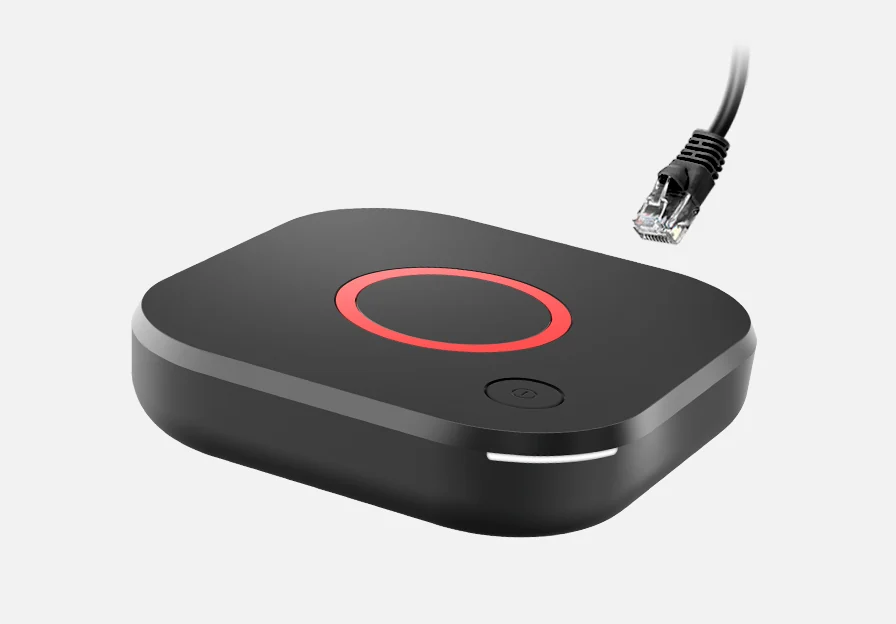
Where the receiver or a supported accessory offers Ethernet, a wired sample gives you a useful comparison. Connect the cable to a known working network port, verify that the device selected that link and repeat the same feed from your baseline. If both the original and wired windows have the same failures, test another lawful source or compatible player before buying a new router. If the wired sample repeatedly improves while Wi-Fi deteriorates after switching back, you have evidence to investigate the local wireless leg.
Check the room that will actually use the setup. A desktop browser in an office can help verify whether a programme is reachable, and it gives limited evidence about a television behind a cabinet elsewhere. Keep the physical viewing location constant while you compare the wireless path. A short test on a laptop in the exact room can be informative if you record what it differs in from the television’s connection.
Look at other ordinary household activity. An evening with video calls, cloud backup and several other streams can create different conditions from a quiet morning. Temporarily pausing a large upload on your own network can help isolate contention when doing so will not interrupt somebody’s work. Run only one planned change at a time and note which traffic was present in each window. If a pause reliably improves playback, give that evidence to the person who controls your own router or connection.
If a new connection path fixes the symptom, choose a permanent step according to the observation. Placement is suitable when approved positioning reliably works. A supported wired connection may be more sensible where a fixed main television can reach one. A mesh or extender can change the path, and the link between its units still needs a controlled playback check. Test the output at the appliance before treating an extra box or monthly internet upgrade as a completed fix.
Understand what the speed number measures
An internet speed test usually samples one path over a brief period. Different test servers, times of day, types of internet access and local connections can yield different results. A large top number does not show which quality the player sustained through an entire programme. Use it alongside the playback record. Save the time and the device used for the test if you include it in a support request.
Distinguish average media rate and peak demand. Some formats offer a set of versions that a player can choose according to its measurements. In HLS, a multivariant playlist can advertise options and their declared bandwidth. The RFC describes BANDWIDTH and optional AVERAGE-BANDWIDTH attributes, which are distinct fields. Check what the player actually exposes. A quality label such as “1080p” reports dimensions or a choice in the app. It does not tell you the exact variation in demand over a particular scene.
Imagine a test stream that averages six megabits of media per second. Over a full hour, six million bits per second times 3,600 seconds is 21.6 billion bits, or about 2.7 decimal gigabytes for the media bytes. Protocol overhead, buffering behaviour, quality changes and other application traffic can shift actual data use. The example gives you a way to compare two possible qualities when you know their average rates. It does not tell you that a six-megabit connection is enough for uninterrupted play. Demand inside short windows can be higher than the hour’s average.
When a player lowers quality, watch for a sustained change. A clear picture that briefly becomes softer and then recovers may be adapting to conditions. Write down when that happens and whether audio and the programme clock continue. A fixed-quality setting can help isolate demand only if the app documents it and you use the same source and conditions. Restore the original choice after the test if it served the household better.
Public recommended speeds from services such as Netflix apply to their own service and quality choices. They provide a sensible reference when testing that app. Use the current publisher recommendations for that service and check your normal device experience. There is no single recommended internet speed that proves every live programme, player and device combination will work in every household.
Separate programme delivery from the player and screen
Keep one device and connection while you compare two authorised feeds. Use the failing example and a working one where possible. If only one channel or event has a problem, note the region, language or feed edition. An HD and SD copy of the same broadcast can use different streams and behave differently. When the publisher supplies several editions, identify the one you actually used before recommending a change.
Try the broadcaster’s native app or another approved client if the service supplies one. This gives a control over the same household connection. When you can test the same licensed feed in a second compatible player, check whether the account and format allow that route. Test the broadcast and a known good feed in each client. A different player may choose a different rendition and handle retries differently, so keep the conclusions at the level the observations support.
If the same programme fails on several compatible devices and two permitted paths, capture the time and name before changing the local configuration. Compare a feed that works. A support request that lists those devices and the shortest reproduction is more useful than one that says “it buffers on everything.” Giving the support party the timezone and live or replay state helps them find the matching issue.
If a known legal feed fails in one player only, read the app publisher’s known issues or update information for your device. Test one documented change at a time. You may see a difference after changing the supported quality, resetting a single private preference from a backup, or installing a publisher-approved update. Save your configuration where the app supports that and keep backup files private because they can include signed media URLs.
When menus and guide rows keep working, the video path may still fail. The interface can load its programme data while media segments or video decoding depend on other components. A video fault does not necessarily remove programme listings. Keep the symptoms separate. Use the EPG repair guide for blank listings and the audio with no picture guide when the actual video area is dark.
Distinguish motion judder and audio faults from an interruption
Use a steady pan or scrolling ticker with a continuous soundtrack. If the position appears to advance unevenly while sound and the playback clock continue, record the cadence. A larger regularly repeated movement can be more visible than a tiny defect in a static interview. Check whether the app shows frame rate and whether the device offers an official match-content feature for the selected display.
Apple documents Match Dynamic Range and Match Frame Rate for supported Apple TV models. When you use a model covered by that support page, a format change can produce a brief black or flickering transition as the television changes modes. Listen for audio and check whether the picture returns. The setting and observed behaviour belong to this hardware and display combination. Use manufacturer instructions for the device in front of you rather than treating Apple’s menu as universal.
Compare audio outputs where speech and lip movement appear separated. Use the same sample through the television speakers and through your normal soundbar or receiver. Record whether the delay stays nearly constant or grows over time. A consistent change when re-routing audio tells you where to look next. If picture, audio and clock all visibly stall while the player waits for data, add that to the log as a different symptom.
When the video freezes with continuing sound on one lawful source, try a second source with a documented format or comparable motion. Test a known local video too, where appropriate. If you can reproduce the failure during local playback, investigate the media app, decoder, output or display before changing the internet plan. If only one network feed fails, keep the timestamp and check the publisher’s supported path.
Check accessories once you know an external display is implicated. Use a known approved HDMI connection and adequate power as described by the device maker. Make the smallest compatible change. Reproduce the opening programme, record any display resynchronisation and switch through the menu once. Return the cable and mode to their normal state if the change tells you nothing. That keeps the experiment reversible.
Check the actual account rules when a second device is involved
Read the provider’s documentation or written support response for concurrent use. A plan can have several meanings of “devices.” Some settings track which devices are registered. Some set how many can play at the same time. Licensing or household rules may also define where those devices can be used. Keep those terms together with the account type and make a test that matches them.
A household testing two approved streams can start the main television and record that it runs normally. Open the second screen at a known time. Watch both. If the first drops immediately, keep the exact error or change in behaviour and close the second. Wait for any documented session release interval and try the first again. Repeat under the plan terms. This distinguishes a repeatable concurrent-use symptom from an interruption someone happened to see while the second viewer walked into the room.
Closing the visible player view may leave an active session briefly depending on the app and service. Use the supported exit or stop control and read the provider’s instructions, especially if you move between test devices under a one-screen plan. Record the time you stopped one before opening another. This can prevent a support conversation where both people are discussing different numbers of active streams.
An error such as 401 can indicate authentication is needed or rejected for a particular request. A 403 indicates a refused request and can arise from access conditions. Explain where you saw the signal. A response after sign-in on one event can be different from a sign-in failure before any content opens. Do not map every in-app label to an HTTP code unless the publisher documents that meaning. Share the account condition and app version without exposing your credentials.
Ask the seller for the authoritative answer when the records differ. Cancellation, renewals, custom profiles and entitlement changes can affect accounts. A receipt describes what you were billed for. The service operator can clarify what is currently enabled on that exact plan. If the provider confirms a limitation, compare the actual cost and intended use of any proposed plan change before accepting it.
Handle failures that only appear at a particular time
A regularly recurring evening issue is worth observing twice. Compare a busy window with a quieter sample on the same device and connection. Keep the feed and picture setting as similar as possible. Write down who else was using the network, the time from selecting the programme to the first steady picture and whether the app lowered quality. If the feed is tied to a specific live event, use an equivalent authorised feed as a control when the event cannot be replayed.
If a particular legitimate provider fails during a busy event while the control service stays stable, send the exact programme, region, timezone and occurrence times to the provider. Do not treat one successful speed test as proof the delivery path had no congestion. It samples whichever route and timing that test used. Similarly, a complaint from someone in another city is useful context when their provider and event are the same, and it is still a separate measurement.
If several services on your household devices show similar issues, compare their results at the same time while separating network path and operating system where feasible. A local wireless problem can affect many services. A congested shared internet connection or a household upload can also affect them. If a device-only symptom follows one app across Wi-Fi and wired links, focus on that app or its format path. A short list of matched observations helps decide whether to contact the provider, app vendor or internet operator.
For a broadcast or replay near a predictable programme boundary, write the start or stop offset as well as local clock time. A fault at the same point in repeated replays gives the source operator a sample they can examine. A failure aligned with a device entering screensaver, sleep or a power change is a different lead. Include that action if you observed it. You can usually test it with a comparable lawful source and without altering many home settings.
Keep a limit on observation before escalating. Two controlled samples and one good comparison often supply more actionable evidence than an evening spent changing several settings. Save the notes when the pattern is clear. Let the team responsible for the suspected part answer with the support logs or officially recommended next step for your equipment.
Make common troubleshooting ideas earn their place
Restart one device after recording a baseline if the publisher recommends it or you can repeat a stuck state. Check whether the same feed works after restart and retest during the same kind of viewing window. If it briefly recovers and then repeats after a set number of minutes, record that duration. A helpful restart can clear a symptom and still leave its trigger unexplained.
Updates can matter when a publisher documents fixes for your exact version or when a current version is required. Read the official listing or release information, save any supported private configuration, then install through the proper store or update path. Test the original failing sample before changing additional video settings. A sudden unfamiliar error after an update is worth reporting with the old and new version numbers.
If an app’s guide or channel list is wrong, examine its own refresh and mapping options before clearing all application data. A working source or secret URL can be hard to recover after a reset. Store any supported backup privately and understand what it contains. When the network playback of two feeds remains stable, there may be no reason to reset the router because one programme listing has failed.
Use a supported alternative network only for a deliberate comparison. A phone connection can have data charges and may change geographic or service conditions. Ask whether the content and account support that route and mark the test clearly. A different path that works demonstrates that the same client can play in that condition. It does not show which point on the original path caused trouble.
Be wary of a single setting described as a universal buffering fix. A quality switch, a different app, a wired link and a publisher update address different parts of the experience. Make the choice that corresponds to the smallest repeatable fault. Keep the previous state available if the test can be reversed, and record the effect with the original example rather than assuming the new setting should stay.
Know when to send the report and what to leave out of it
If the publisher controls the affected stream, send the exact event or feed name, market, local date and time, live or replay state and the shortest sequence that fails. Mention one authorised comparison feed that worked, or say you observed the same failure with other feeds on the same service. Include your model and player version. If you actually tried another approved path, say which type of path it was and whether the sound and video stopped together.
For the player publisher, describe a minimal sample that is allowed to share. You can usually report the format, error, OS, player version and length of time until the fault with fictional source identifiers. A support person can ask through an official private channel if an authorised reproduction needs more details. Avoid sending a private IPTV URL or playlist export in a public thread. Learn what a signed address can reveal before sharing anything that includes credentials.
For the internet operator or local network admin, give the controlled evidence for that path. Show a wired result alongside a wireless or separately measured control if you have one. Describe when the issue appears and whether it affects multiple legitimate services. Support may ask for more data about your service and connection. Keep account details in its authenticated help channel rather than a forum post.
An example technical report can fit in a few lines. “At 19:10 local time I used the documented app and firmware on a living-room box. The 19:00 replay stopped at 03:40 and 07:15 in two fifteen-minute Wi-Fi windows. The same replay showed no stops over the supported wired path. A second news feed stayed stable in both tests.” That statement gives someone a useful next step without supplying a customer name, private media address or password.
If you found the difference yourself, write the confirmed fix as a testable result. “Moved the approved receiver to the wired connection. Repeated the same fifteen-minute feed on two evenings. Zero observed stalls while the former wireless path still had brief repeats.” Keep your settings notes to make a future regression easier to diagnose. If a question remains, share a cleaned example in the playback forum with the posting checklist.
Work through a failure that starts during a channel change
Imagine a television box that takes five seconds to start playing the morning bulletin and then plays smoothly for twenty minutes. The viewer changes to a second lawful feed. The player waits a similar amount of time at the transition, then stays steady. Record this as startup and channel change behaviour. Someone watching only the first six seconds could call it buffering, while a twenty-minute log shows a repeatable delay at a specific action. If the delay is acceptable after the first frame, changing a service plan may never improve the aspect of viewing you actually care about.
Set up three comparable transitions rather than opening a new route each time. Note the old and new feed, the moment you pressed the button, the first audible sound and the first usable picture. A small worksheet could show “normal HD feed, same audio language, 4 s to sound and 5 s to steady picture” on two attempts. A third attempt that changes the dynamic range on an external box may show an additional short black interval. Collect that difference as a clue for the display manufacturer’s instructions.
When the app exposes quick-switch choices, test one documented setting with the exact same pair of feeds. Think about the trade-off you can observe. A preference that speeds the first frame could reduce picture clarity at startup or increase the chance of a quality change. A quiet start that takes a moment longer can be preferable in a household that rarely changes channels. Decide using the observed result on the original path.
If different apps or devices have different startup times, use the same service, supported format and account where possible. Start from an idle state and write down whether the app was already open. A warm switch inside a loaded app can be faster than launching a closed app, so compare warm switches with warm switches and cold starts with cold starts. These small distinctions keep a reasonable product difference from being mistaken for a fault.
Decide what to do when the problem follows the picture quality
Suppose a high-motion HD feed plays cleanly on an approved television box and a higher-resolution alternative stops twice. Run the higher-quality version over the supported wired path and record whether the same stops occur. If you can use a second compatible device and the service permits it, try that version there in the same period. The comparison should tell you whether the issue follows the higher-demand stream, the first screen or the local connection.
Check the picture choices advertised by the app against the quality information it actually exposes. A service can list a quality option without delivering that quality continuously. When a supported diagnostics screen is available, use its reported dimensions, frame rate or current quality label next to the stall times. If the app changes quality automatically, record the change as an observation. Give the source team the precise point where a higher quality became unusable.
A practical decision often comes down to a stable mode that works today. If the documented HD variant is the only one that played steadily in two equivalent windows, keep it as a fallback for programmes you care about. Continue to test higher quality using the approved route that gave the best result. Keep the upgrade or cancellation decision linked to the actual requirements for your household. A stable mode can be useful while the supplier investigates a different delivery path.
Consider data use before repeating very large samples over mobile. A half-hour stream averaging eight decimal megabits per second represents about 1.8 decimal GB of media before overhead and other traffic. If data is metered, use a short published sample or a supported wired test where appropriate. Keep the length and connection in your log. The same measurement goal can often be met without many long transfers.
Close the investigation with a reversible change
Write down the change that improved the matching test. Keep the original state alongside it. If the improvement was using a different approved output mode, include the old mode, new mode and exact sample. If the improvement came from changing where the television box sits, preserve the details you can reproduce. If support updated access, document the corrected condition without keeping a password or account secret in the shared notes.
Set a repeat window. Leave the new configuration in place until the household sees it work as expected during normal use. Reopen the same lawful programme or an equivalent one at the usual time. Recheck caption or audio features affected by any output change. If symptoms recur, include the new time, whether the same feed was involved and which test worked before. This gives the next person a continuation from evidence.
Some issues are intermittent enough that you cannot identify a stable trigger on the first evening. Keep the original lawful fallback available and collect observations as the specific programme fails. Describe what remains uncertain. When there is no representative failure, changing equipment repeatedly can erase the clues you already have. A concise record of two sessions with their exact conditions is a better starting point for help than a list of resets.
Sources and scope
Publisher documentation and editorial analysis. Hardware and subscriptions were not purchased or tested for these guides.